Music Tools for Windows
 Music Tools for Mac


- Step 1: Find Your Kindle Folder
- Step 2: Understand What's Inside a Book Folder
- Step 3: Work Out Which Folder Is Which Book
- What Changed in 2026
- Step 4: Back Up Your Kindle Books the Right Way
- Step 5: Read Your Kindle Books on Other Devices
- Kindle File Types Reference
- Frequently Asked Questions (FAQ)
Where Are Kindle Books Stored? Find, Identify & Back Up Your Kindle Files (2026)
Find where Kindle books are stored on Windows, Mac, Android and Kindle e-readers, learn how to back up your library the right way.
Short answer: Kindle books are stored in a folder that belongs to your Kindle app, and the exact location depends on which app and version you use. But finding the folder is only the first step. Once you open it, you'll see files with strange names like B0HD6V4WZZ_EBOK.azw and no book titles at all. In this guide, we'll show you how to find your Kindle folder, read what's inside, work out which book is which, and back everything up so you can actually use it later.
Step 1: Find Your Kindle Folder
Start with the app you use to download your books, then follow the matching path.
If you use a Windows PC
- New Kindle for Windows app (Microsoft Store): press Win + R, paste the path below, and press Enter. The folder is hidden by default, and you can't change its location.
%LOCALAPPDATA%\Packages\AMZNKindle.AmazonKindleReadingApp_m1sc522ngdk36\LocalState\Classic\Content
- Legacy Kindle for PC:
C:\Users\YourUserName\Documents\My Kindle Content
If it's empty, open Tools > Options > Content to see whether the folder was changed.
If you use a Mac
In Finder, press Shift + Command + G and paste the path that matches your app:
- New Kindle app (Mac App Store):
~/Library/Containers/com.amazon.Lassen/Data/Library/eBooks
- Kindle Classic (Mac App Store):
~/Library/Containers/com.amazon.Kindle/Data/Library/Application Support/Kindle/My Kindle Content
- Kindle for Mac installed from a .dmg file:
~/Library/Application Support/Kindle/My Kindle Content
If you use Android or a Fire tablet
- Books are kept in:
/storage/emulated/0/Android/data/com.amazon.kindle/files/On newer Android versions this folder is restricted, so a file manager or a USB connection may show it as empty or refuse to open it.
If you use an iPhone or iPad
- You can't. iOS keeps Kindle books inside the app's private storage, and the same goes for offline copies in Kindle Cloud Reader, which live in your browser's own storage.
If you use a Kindle e-reader
- Connect it to your computer with a USB cable. It appears like a flash drive, and your books are in the
documentsfolder.
The easiest way to find the kindle downloaded books:
Download imElfin eBook Ultimate for FREE:
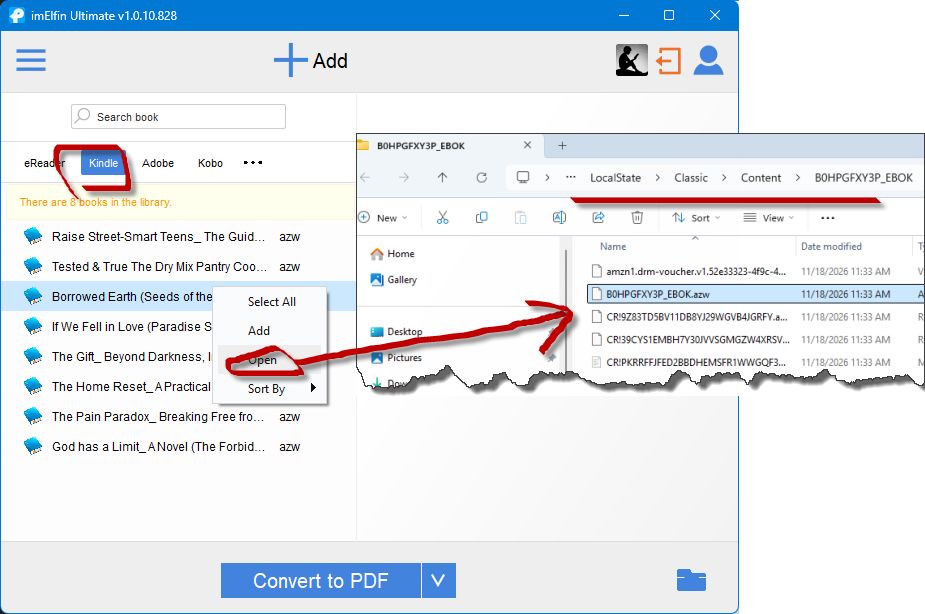
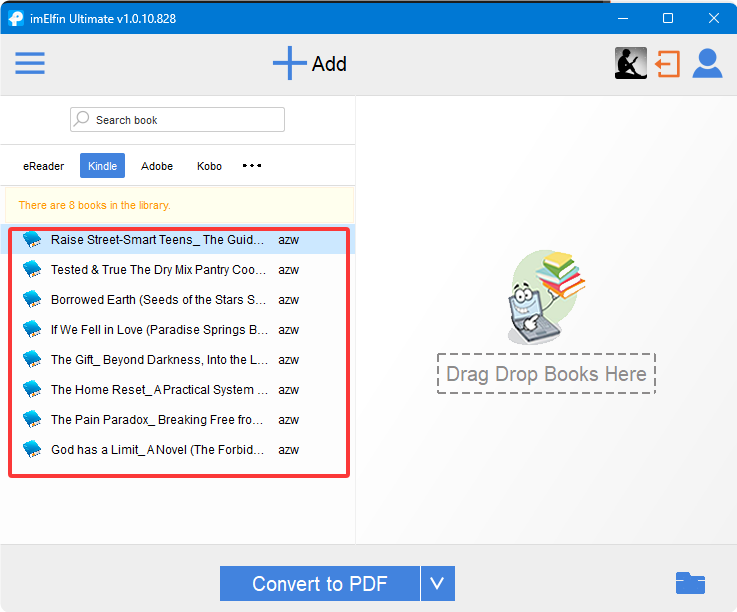
Launch imElfin eBook Ultimate, click the "Kindle" tab, then right-click the book you want to find and choose "Open". The folder where your Kindle downloads are stored will open.
Folder looks empty? The most common reason is that the book is still in the cloud. A cloud icon on the cover means the book hasn't been downloaded, so there is nothing on your computer yet. Open the book once in the Kindle app and check again.
Step 2: Understand What's Inside a Book Folder
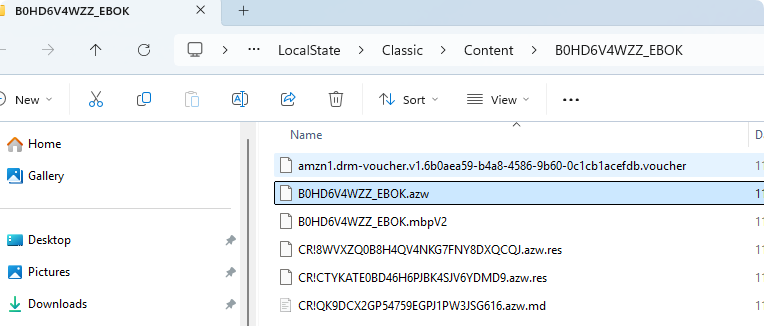
Open a downloaded book's folder and you'll see something like this. Each book gets its own folder, named after its Amazon ID (ASIN), and the files inside work together.
| File (Example) | What It Does |
|---|---|
| B0HD6V4WZZ_EBOK.azw | The main book file. The name is the book's ASIN plus "_EBOK", which marks it as an eBook. Despite the .azw extension, newer books may contain KFX data inside. |
| amzn1.drm-voucher.v1.xxxx.voucher | The DRM voucher. It holds the license information your authorized Kindle app uses to decrypt the book. If you see this file, the book is DRM-protected. |
| B0HD6V4WZZ_EBOK.mbpV2 | Your reading data, such as the last-read position, bookmarks, and highlights. |
| CR!xxxx.azw.res | Resource files containing the book's images, fonts, and other media. A book can have several. |
| CR!xxxx.azw.md | A metadata file that goes with the book's resources. Amazon doesn't publish documentation for it, but it is normal and should be kept with the other files. |
The key takeaway: the .azw file on its own is not a usable book. Without the voucher and resource files next to it, it can't be opened or converted properly.
Step 3: Work Out Which Folder Is Which Book
Because folders use ASINs instead of titles, a library of 50 books looks like 50 random codes. To identify one:
- Copy the code at the start of the file name, for example
B0HD6V4WZZ. - Add it to an Amazon product link:
amazon.com/dp/B0HD6V4WZZ. - The page that opens is the book. Rename the folder to the title if you want an organized backup.
Doing this for a whole library by hand is slow. imElfin eBook Ultimate reads your downloaded books and lists them with their titles, so you don't need to decode folder names yourself (see Step 5).
What Changed in 2026
If a guide you found online sends you to My Kindle Content and it's empty, this timeline explains why:
- Early 2026: Amazon added the option to download eligible DRM-free Kindle books directly as EPUB or PDF from Manage Your Content and Devices. This doesn't apply to DRM-protected books.
- June 2026: Amazon released a new Kindle for Windows app through the Microsoft Store. It stores books in a hidden, fixed folder, and the download location can no longer be changed.
- June 30, 2026: Amazon ended support for the legacy Kindle for PC app. Books you downloaded earlier remain in their old folder, but the app is no longer supported.
If you still have books in the old My Kindle Content folder, now is a good time to back them up.
Step 4: Back Up Your Kindle Books the Right Way
Follow this checklist so your backup stays usable:
- Copy the entire book folder, not just the .azw file. The voucher and resource files are needed to open or convert the book later.
- Keep the folder names, or rename them with the title and keep the ASIN in the name so you can still trace the book.
- Back up from every location you've used. If you used both the legacy app and the new app, your books may be in two different folders.
- Store the copy on an external drive or cloud storage, separate from your computer.
Keep in mind that a backup of DRM-protected files can only be read by a Kindle app signed in to your Amazon account. To read them elsewhere, continue to Step 5.
Step 5: Read Your Kindle Books on Other Devices
Kobo, Nook, Apple Books, and most other e-readers can't open Kindle files, so you'll need to convert them to EPUB. Your path depends on the folder you opened in Step 2:
- No voucher file (DRM-free book): convert it directly with a tool such as Calibre, or download it as EPUB or PDF from Amazon if the title is eligible.
- Voucher file present (DRM-protected book): remove the DRM first. You can use Calibre with the DeDRM plugin (see our DeDRM Calibre guide), or use imElfin eBook Ultimate for a one-click workflow.
Convert with imElfin eBook Ultimate
1
Download Your Books in the Kindle App
Install and open the Kindle app on your computer and download the books you want to convert. Wait until the cloud icon disappears from the cover.
2
Let imElfin eBook Ultimate Detect Them
Launch imElfin eBook Ultimate. Your downloaded books appear under the "Kindle" tab with their titles. Drag them to the main interface to remove the DRM.

3
Convert to EPUB
Select "Convert to EPUB" from the bottom drop-down menu and click the convert button. Then click the folder icon to open your DRM-free EPUB books.

Download imElfin eBook Ultimate for FREE:
Kindle File Types Reference
Depending on your device, app version, and the age of the book, you may also come across these file types:
| File Extension | What It Is |
|---|---|
| .azw / .azw3 | Kindle's standard book formats. AZW3 is also known as KF8. |
| .kfx | Amazon's newer Kindle format, used for Enhanced Typesetting. |
| .kfx-zip | A ZIP package containing KFX book data. |
| .mobi / .prc | Older Kindle formats, also common for sideloaded books. |
| .tpz | Topaz, a legacy image-based Kindle format found on some older books. Rare today. |
| .voucher | A DRM license file stored next to a protected book. |
| .mbpV2 | Reading position, bookmarks, and highlights saved by the desktop app. |
| .res / .azw.res | Resource files holding a book's images, fonts, and media. |
| .azw.md | Metadata file that accompanies a book's resources. |
| .apnx | A page number index that lets Kindle display real page numbers. Found on Kindle e-readers. |
| .sdr | A "sidecar" folder on Kindle e-readers, named after the book, that stores reading progress, bookmarks, and highlights. |
Frequently Asked Questions (FAQ)
Q1: I only have the .azw file. Can I still use it?
If the book is DRM-free, often yes. If it was DRM-protected, the .azw file alone is not enough, because the matching voucher file is needed to unlock it. If you still have the original folder or the book is still in your Kindle library, download it again and copy the whole folder.
Q2: Why do my Kindle books have random names instead of titles?
Kindle names each book's folder and files with its Amazon ID (ASIN) so the app can track them. Use the ASIN lookup in Step 3 to identify a book, or let a tool such as imElfin eBook Ultimate list your books by title.
Q3: Is the Kindle folder the same as my Calibre library?
No. They are separate. When you add a book to Calibre, it keeps its own copy in the Calibre library folder, while the original stays in your Kindle folder. Deleting one doesn't remove the other.
Q4: Can I still use books I downloaded with the legacy Kindle for PC?
The files stay in their folder, but Amazon no longer supports the app. We recommend backing up those folders now (Step 4) and, if you want to read them on other devices, converting them to EPUB.
Q5: Is it legal to back up and convert my Kindle books?
Converting books you have purchased for your own use, such as reading them on your own Kobo or Nook, is generally considered acceptable personal use in many regions, as long as you don't share or distribute the converted files. Laws vary by country, so check the rules where you live.
Conclusion
Finding where Kindle books are stored is quick once you know which app you use, but the folder itself is full of files that are hard to read without context. Now you know what each file does, how to identify a book by its ASIN, and why you should back up the whole folder instead of a single file. To read your books on other devices, imElfin eBook Ultimate can detect your downloaded Kindle books and convert them to EPUB in a few clicks.
Download imElfin eBook Ultimate for FREE: